When I first worked on my bank statements, I was overwhelmed by so many PDFs. It was tiresome to copy transactions to Excel, and I was afraid of making mistakes. I spent hours fixing formatting issues and double-checking numbers that didn’t align properly.
This article explains how to convert PDF bank statements to Excel or CSV. Moreover, I’ll also share how UPDF PDF Editor simplifies conversion and helps me analyze financial data.
Part 1. Can I Convert a Bank Statement to CSV/Excel?
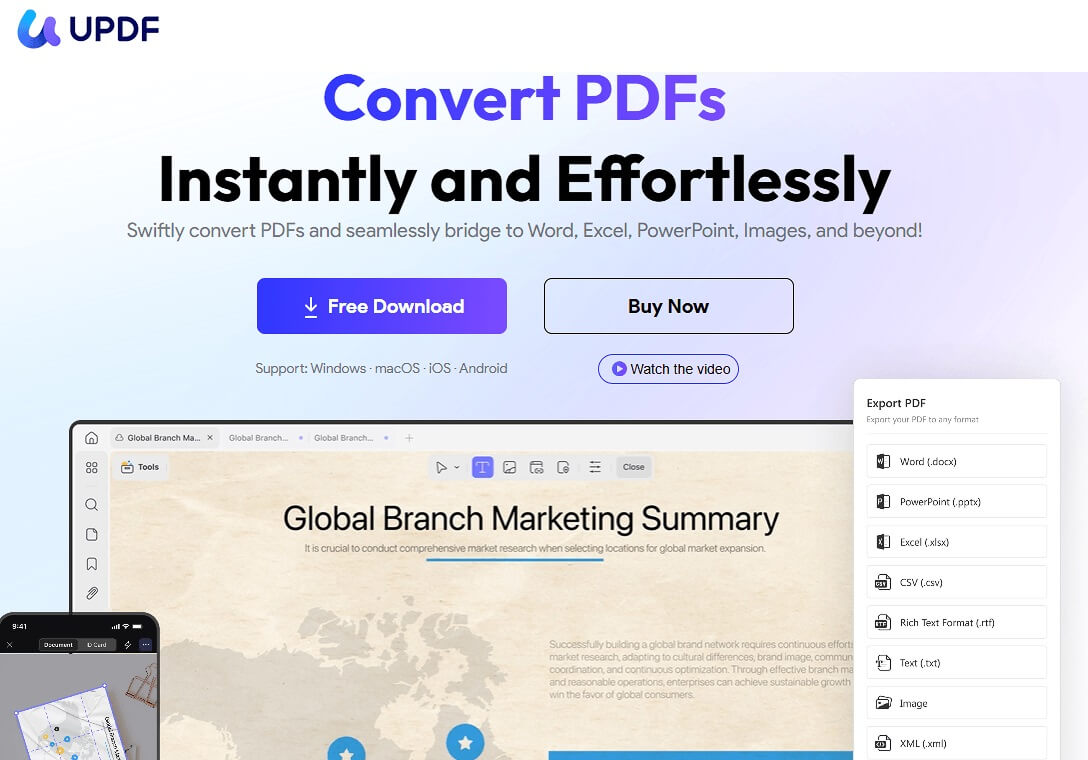
Yes, I can convert my PDF bank statement to CSV or Excel easily using UPDF. To convert PDF statements, I explored tools that can make the process simple. This is where UPDF steps in as a powerful conversion solution. So, download UPDF to experience hassle-free bank statement conversion.
Key Benefits of Using UPDF
Before learning how it works, let me highlight why UPDF stands out among other converters:
- Supports converting multiple bank statements in batches with accurate formatting.
- Securely processes financial data and protects all sensitive account information.
- Fully compatible with Windows, macOS, iOS, and Android for device flexibility.
Instead of converting bank statements to Excel for analysis or budgeting, UPDF lets you do it directly from the PDF. Now, let’s explore what UPDF AI can do:
- Budget Insights: Track financial patterns and spending trends effectively to improve your budgeting decisions.
- Automated Reports: Extract essential data and generate clear, structured financial reports automatically.
- Organized Records: Keep transaction history arranged for easy future reference and data retrieval.
Part 2. How to Convert a Bank Statement to CSV
Having explored what UPDF can do, I’ll now share some methods to convert PDF to CSV bank statement using UPDF.
1. Convert a Single Bank Statement to CSV
Now, follow the steps below to turn one PDF bank statement into a CSV file using UPDF:
Step 1. Import PDF Bank Statement into UPDF
On the main interface, press the “+” icon and press the “Open File” button to import a PDF bank statement.
Step 2. Access Convert PDF Feature
Next, press the “Tools” option and click the “More” option in the “PDF Converter” section. Choose the “CSV” as Output Format, press the “Apply” button, and select the folder to save the converted file.
2. Convert Multiple Bank Statements to CSV
To convert multiple PDF bank statements to CSV, go through the simple steps that I’ve listed below:
Step 1. Access Batch Convert Tool
Upon entering the UPDF’s home screen, press the “Tools” option and click the “Convert” tool under the Batch Process section.
Step 2. Import PDFs and Choose Output Format
As you move forward, press the “Add Files” button to import PDFs and select CSV as the Output Format. Next, press the “Apply” button.
Other than conversion to CSV, UPDF also lets you bank statement convert PDF to Excel.
Part 3. How to Analyze Data in Bank Statements without Converting Them to CSV
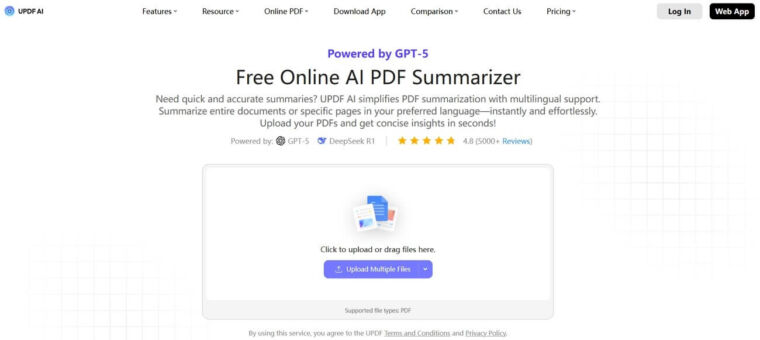
As I discussed above, UPDF also lets me analyze and summarize PDF statements beyond conversion. It saves time because I no longer need to convert PDF to CSV bank statement first. I can review patterns and understand my spending within UPDF. Now, follow the steps below to see how I use UPDF for this:
Step 1. Access UPDF AI Chat Ask PDF Feature
After importing the PDF, press the “UPDF AI” icon in the top right corner and press the “Chat With PDF” option to let AI analyze your document.
Step 2. Ask AI for Insights
Next, enter the prompt “Suggest a better plan” and press the “Send” button. UPDF AI will provide a tailored plan as per your spending habits. Similarly, you can ask questions about the bank statement.
FAQs
- How do I convert a bank text file to Excel?
You can import the text file into Excel using the Data tab’s Text/CSV option.
- How do I convert a PDF financial statement to Excel?
Use a PDF converter or UPDF to bank statement convert PDF to Excel.
- How do I open a PDF bank statement in Excel?
First, convert the PDF to Excel format, then open the converted .xlsx file in Excel.
Conclusion
I’ve explained how to convert PDF bank statements to Excel and CSV. These methods save time, reduce manual errors, and make analyzing your financial data much easier. For streamlined conversion and smarter analysis of statements, consider using UPDF.