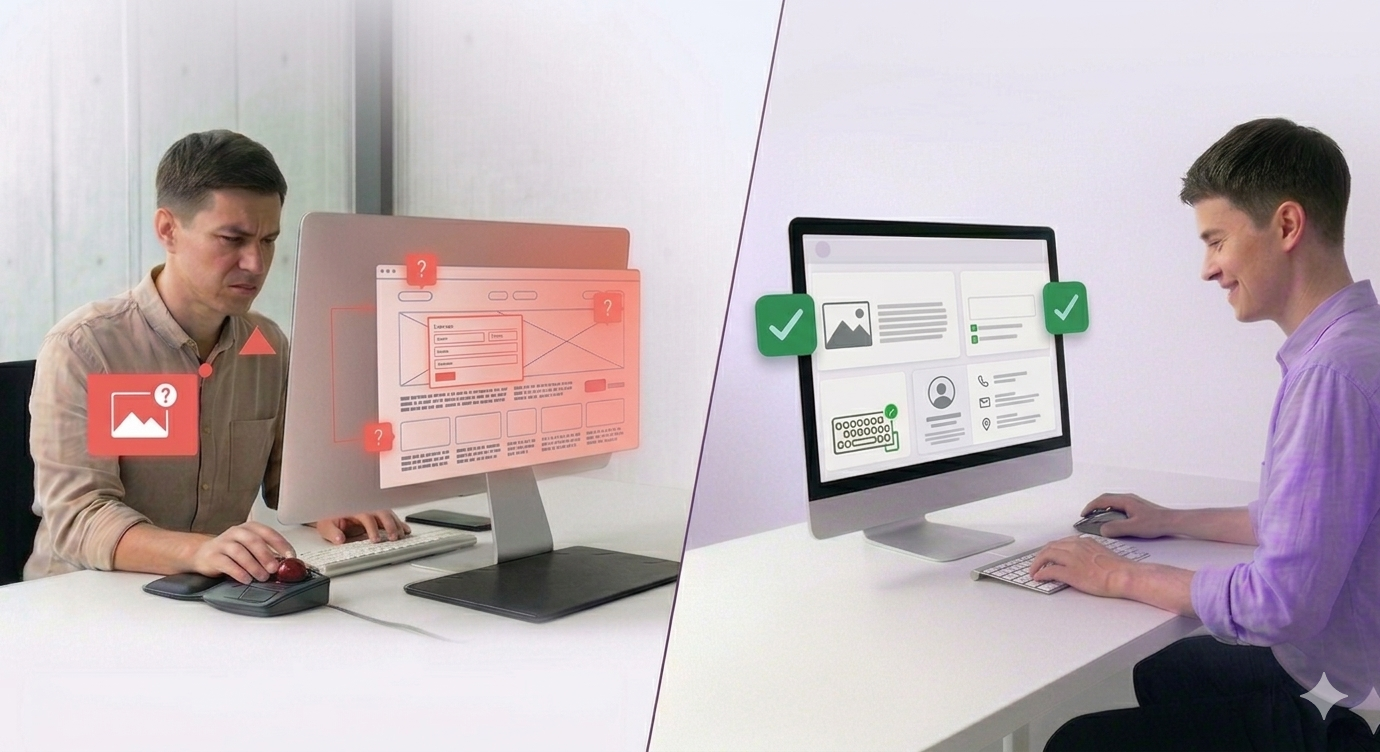
WordPress themes control most of what determines whether your site passes or fails WCAG 2.2 — contrast, heading structure, keyboard navigation, form labels. Getting this right doesn’t require rebuilding your site. This guide covers what accessibility requires in a WordPress context, where themes most often cause problems, and how to check your site without a developer.
What does WordPress accessibility require?
WordPress accessibility means your site meets WCAG 2.2 Level AA. This is the benchmark referenced by ADA Title III in the US and EN 301 549 in the EU. If you want to see where your site currently stands, a free accessibility scan gives you a page-by-page issue report in under a minute.
WCAG 2.2 organises its requirements into four principles: content must be perceivable, operable, understandable, and robust. In practice, for a WordPress site, this translates to specific technical requirements. Images need descriptive alt text. Text must have a contrast ratio of at least 4.5:1 against its background. All interactive elements, such as buttons, links, menus, must be reachable by keyboard alone. Forms must have visible labels. Pages must work with a screen reader.
WordPress itself is accessibility-ready as a platform. The CMS handles much of the underlying structure well. The problems almost always come from the theme layer.
Why does your WordPress theme affect accessibility?
Themes control the visual layer of a WordPress site. They determine heading structure, colour choices, button styles, navigation behaviour, and how interactive elements are built. Every one of those decisions has an accessibility consequence.
A theme that uses the wrong heading order breaks screen reader navigation. A theme that applies text colour and background colour without checking contrast fails WCAG 1.4.3. A theme that builds a dropdown navigation with JavaScript but no keyboard event handling locks out keyboard users entirely.
This is why choosing a WCAG-aware theme matters. A theme built on accessible markup gives you a better starting point. But no theme eliminates the need to check the output, because content, plugins, and customisations all introduce their own issues after installation.
What are the most common accessibility issues in WordPress themes?
These are the failures that appear most frequently across WordPress sites, based on automated accessibility scans.
- Colour contrast failures are the single most common issue. Many themes apply light grey text on white backgrounds. This looks clean but typically fails the 4.5:1 contrast minimum. Small text at #999999 on white (#FFFFFF) produces a ratio of 2.85:1 — well below the WCAG threshold.
- Missing image alt text is common when themes include decorative images, sliders, or feature graphics without alt attributes. WordPress makes it easy to add alt text through the media library, but themes that insert images directly in template files often bypass this.
- Keyboard navigation gaps appear frequently in mega menus, modal windows, and off-canvas drawers. These patterns are built with mouse interaction in mind. Adding keyboard support requires explicit focus management, trapping focus inside a modal when it opens, returning focus to the trigger when it closes, and making sure dropdown items are reachable via Tab and arrow keys.
- Unlabelled form fields occur when themes style contact forms using placeholder text instead of visible labels. Placeholder text disappears when a user begins typing. Screen readers do not reliably treat placeholder text as a label. WCAG 1.3.1 requires programmatic labels for all form inputs.
- Missing skip navigation links affect keyboard users on every page load. Without a «skip to main content» link, keyboard users must Tab through the full navigation on every page before reaching any content. This is a WCAG 2.4.1 requirement — one of the more visible failures in accessibility audits.
How do you check your WordPress site for accessibility problems?
Automated scanning is the fastest way to get a picture of where your site stands. No automated tool catches everything — manual testing and screen reader testing are also necessary — but scanning identifies a large proportion of the most common failures quickly.
For site-wide scanning across multiple pages, dedicated accessibility platforms provide more comprehensive coverage. Welcoming Web, for instance, is a web accessibility platform that scans WordPress sites against WCAG 2.2, ADA Title III, and EN 301 549. Their WordPress integration guide shows how to connect it via a single code snippet — no developer needed.
Manual testing supplements automated scanning. Unplug your mouse and navigate your site using only the keyboard. Tab through every interactive element. Check that focus is visible at all times. Open your site with a screen reader — NVDA on Windows is free, VoiceOver is built into macOS and iOS — and navigate through a page. The experience a screen reader user has is often very different from what automated tools report.
Which WCAG criteria do WordPress sites fail most often?
These five WCAG success criteria account for the majority of failures found during WordPress accessibility audits.
- WCAG 1.1.1 — Non-text content. Images without alt text. This is the most frequently cited failure across all website types.
- WCAG 1.4.3 — Contrast minimum. Text colour against background colour must meet a 4.5:1 ratio for normal text and 3:1 for large text (18pt or 14pt bold).
- WCAG 2.1.1 — Keyboard accessible. All functionality must be operable via keyboard. Hover-only menus, JavaScript-only interactions, and custom UI components built without keyboard support fail this criterion.
- WCAG 2.4.1 — Bypass blocks. A skip navigation mechanism must be present. This is typically a visually hidden link that becomes visible on focus and jumps to the main content area.
- WCAG 4.1.2 — Name, role, value. All user interface components must have an accessible name, a defined role, and programmatically determinable state. Custom buttons built from div elements, icon-only controls without aria-label, and interactive elements with no semantic role all fail this criterion.
How do you keep your WordPress site accessible over time?
WordPress accessibility is not a one-time fix. Themes update, plugins change, content gets added. Running a regular scan gives you a current picture of where your site stands and what needs attention. If you haven’t checked yours yet, run a free accessibility scan and see exactly what WCAG 2.2 flags on your pages.
Frequently asked questions about WordPress accessibility
Does my WordPress theme need to be WCAG 2.2 compliant? Your site needs to meet WCAG 2.2 Level AA if you are subject to ADA Title III or EN 301 549. The theme is one part of the equation — but content, plugins, and customisations all contribute to the final accessibility state of the site. A WCAG-ready theme reduces baseline issues but does not remove the need to test the output.
Does WordPress have built-in accessibility features? WordPress core is built with accessibility in mind. It includes skip navigation, ARIA landmarks in core templates, and keyboard-accessible admin interfaces. The platform also maintains an accessibility team that reviews core contributions. Most accessibility failures on WordPress sites originate in themes, plugins, or content — not in core.
What is the difference between accessibility-ready and fully accessible? «Accessibility-ready» is a WordPress.org theme designation. It means a theme has passed a checklist covering basic requirements: skip links, keyboard navigation, form labels, and ARIA landmarks. It does not mean the theme is fully WCAG 2.2 compliant. Additional testing and remediation are typically needed.
How long does it take to fix WordPress accessibility issues? This depends entirely on the volume and type of issues found. Contrast fixes and missing alt text can be addressed in hours. Structural issues in navigation, custom components, or form behaviour take longer and may require developer involvement. Automated scanning gives you a starting inventory — prioritise by severity and fix in order of impact.
Can plugins cause accessibility problems? Contact form plugins, sliders, gallery plugins, cookie consent banners, and chat widgets all introduce their own markup. Each introduces its own potential accessibility failures. Plugins are not covered by your theme’s accessibility-ready designation.